Bulk Import
Import graph data from CSV or SQL Server with guided mapping, validation, and real-time progress.
Overview
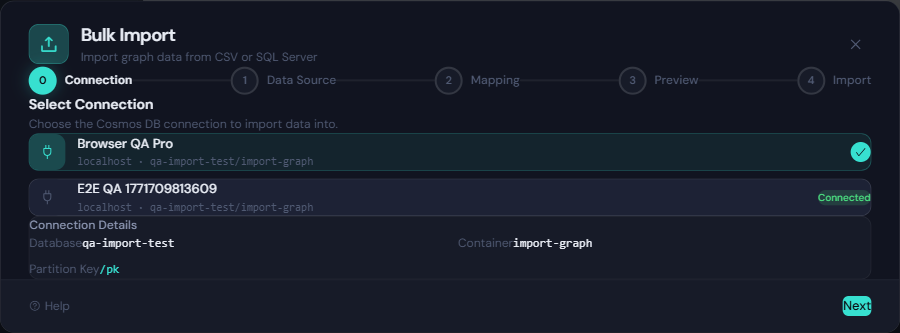
Bulk Import is the fastest way to load graph data into Azure Cosmos DB from inside GremlinStudio. The wizard guides you through connection selection, source configuration, column mapping, preview, and import progress.
- Supports CSV and SQL Server sources
- Supports vertices-only imports or vertices + edges imports
- Includes duplicate handling modes: Create (fail on duplicate) and Upsert (overwrite duplicates)
- Shows import progress, RU usage, elapsed time, and errors
If you have not configured a database connection yet, start with Connection Setup.
License Requirements
Bulk Import requires an active Pro or Team license.
- Starter and inactive-license users can see the Import action but cannot start import
- Trial users are blocked from Bulk Import
- Pro and Team users can run the full wizard flow
Wizard Steps
- Connection: Choose the target Cosmos DB connection profile.
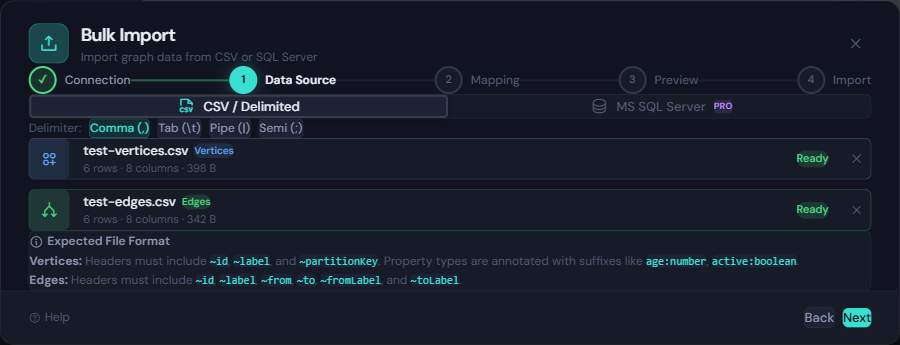
- Data Source: Choose CSV/delimited files or SQL Server.
- Mapping: Map source columns to graph fields and properties.
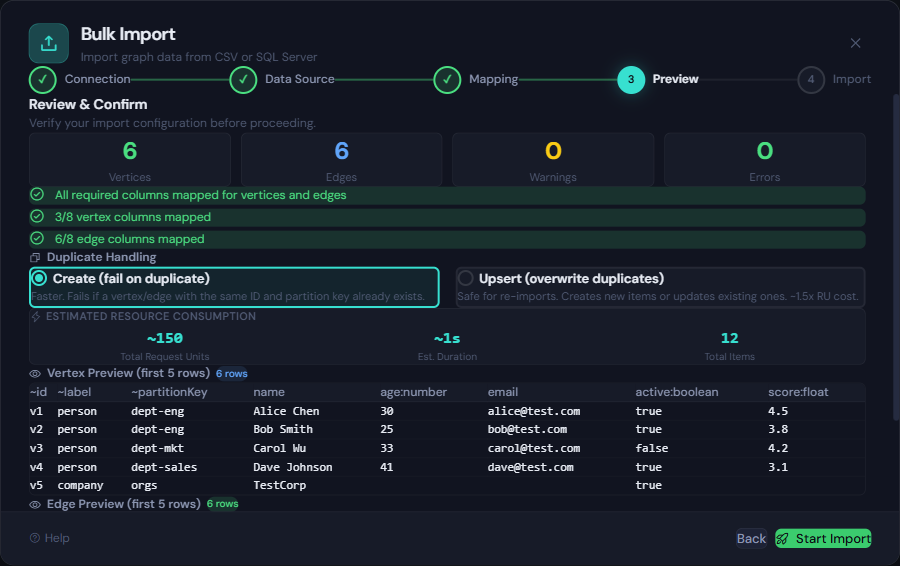
- Preview: Validate mappings, see sample rows, choose duplicate handling.
- Import: Run import and monitor progress/errors.
CSV and Delimited File Support
GremlinStudio accepts .csv, .tsv, and .txt files for delimited imports.
Supported delimiters:
- Comma
, - Tab
\t - Pipe
| - Semicolon
;
Delimiter is auto-detected from uploaded content and can be changed manually.
Required Vertex Columns
| Column | Required | Purpose |
|---|---|---|
~id | Yes | Vertex id |
~label | Yes | Vertex label |
~partitionKey | Yes (or mapped equivalent) | Partition key value |
Required Edge Columns
| Column | Required | Purpose |
|---|---|---|
~id | Yes | Edge id |
~label | Yes | Edge label |
~from | Yes | Source vertex id |
~to | Yes | Destination vertex id |
~fromLabel | Yes | Source vertex label |
~toLabel | Yes | Destination vertex label |
Supported Property Data Types
Use header suffixes to control type parsing.
| Header example | Parsed type |
|---|---|
name | string (default) |
age:number | number |
count:int | int |
timestamp:long | long |
active:boolean | boolean |
score:float | float |
Notes:
- Type suffixes are case-insensitive.
- Unknown type suffixes are treated as plain string headers.
- Empty cells are skipped for that property.
SQL Server Source
The SQL Server path lets you connect, run a query preview, and map returned columns in the same wizard.
- Authentication: Windows or SQL Login
- Query preview before import
- Import mode: Vertices or Edges
- Column mapping uses the same graph targets as CSV mode
For best mapping results, alias selected columns to graph targets where possible (for example ~id, ~label, ~partitionKey for vertices, and edge targets for edge mode).
Preview and Duplicate Handling
The Preview step validates required mappings and shows sample rows before writes start.
- Create (fail on duplicate): Faster, but conflicting items fail
- Upsert (overwrite duplicates): Safer for re-imports and updates
If you are rerunning imports over existing ids, choose Upsert to avoid conflict-heavy runs.
Troubleshooting
”Bulk Import requires an active Pro or Team license”
- Activate a Pro or Team license in Settings and retry.
Conflict (409) errors during import
- Usually indicates duplicate ids for the same partition key while using Create mode.
- Switch to Upsert if you intend to update existing vertices/edges.
Missing required columns
- Verify all required graph columns are present and mapped.
- For edges, ensure both id endpoints and both endpoint labels are included.
Type parse errors
- Check header suffixes and source values (for example
age:intmust contain integer values).
Verify Imported Data
After import, run quick checks in the Query Editor:
g.V().count()g.E().count()g.V('v1').valueMap(true)