Bulk Import CSV & SQL Server to Cosmos DB Graph
GremlinStudio's new Bulk Import wizard lets you load thousands of vertices and edges into Azure Cosmos DB from CSV files or live SQL Server queries — with a guided wizard, real-time progress, and high-throughput Cosmos SDK ingestion.
The Data-In Problem
Graph databases have an adoption bottleneck: getting data in. Most developers have data sitting in CSVs, SQL exports, or Excel sheets. Until now, the only option in GremlinStudio was writing individual g.addV() queries by hand — completely impractical for anything beyond a handful of nodes.
Today we’re shipping Bulk Import — a wizard-guided feature that lets you import thousands of vertices and edges from CSV files or live SQL Server queries directly into your Azure Cosmos DB graph database.
No scripts. No custom code. No ETL pipelines.
What’s New
Bulk Import is a five-step wizard built directly into GremlinStudio:
- Connect — Select your Cosmos DB connection. Partition key and throughput are auto-detected.
- Choose Source — Upload CSV/delimited files, or connect to MS SQL Server and write a query.
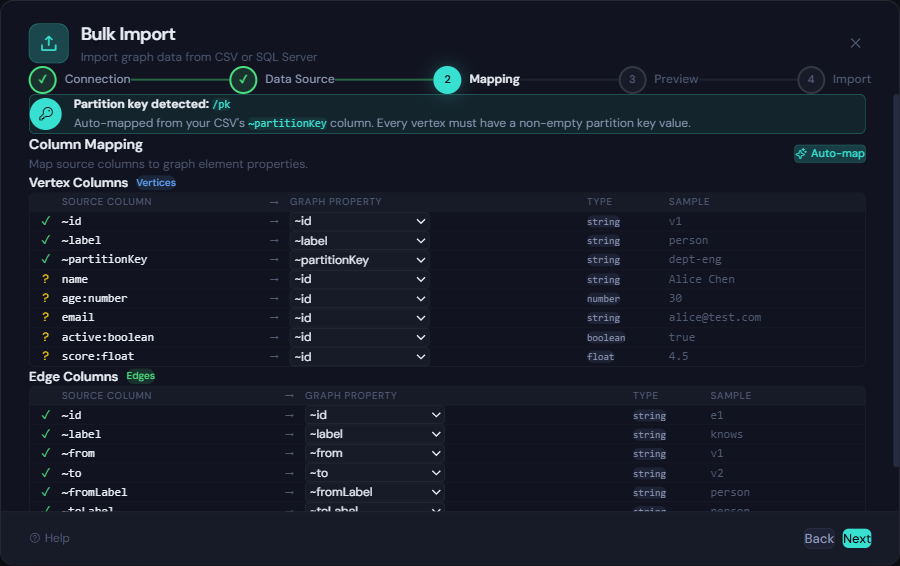
- Map Columns — Map source columns to graph properties with auto-detection for convention headers.
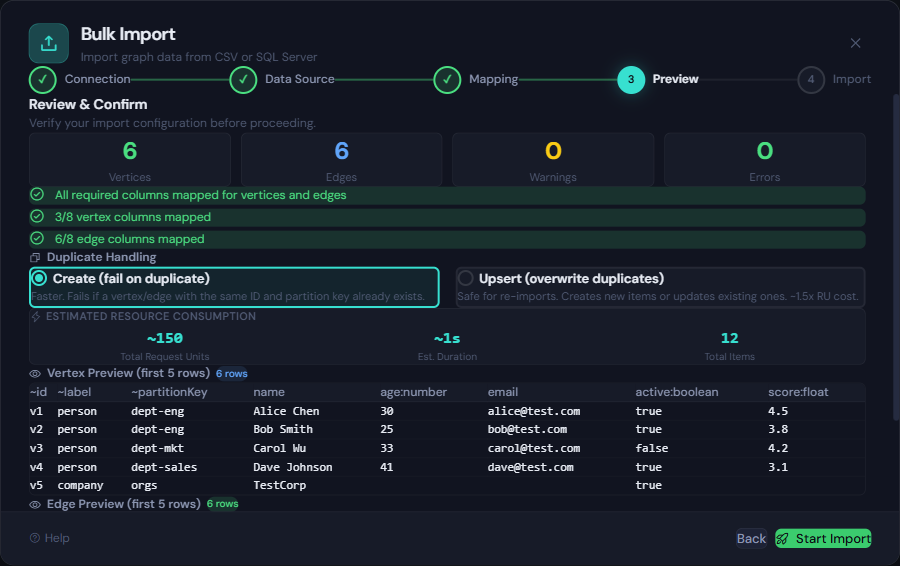
- Preview — Review validation, choose Create or Upsert mode, and see an RU cost estimate.
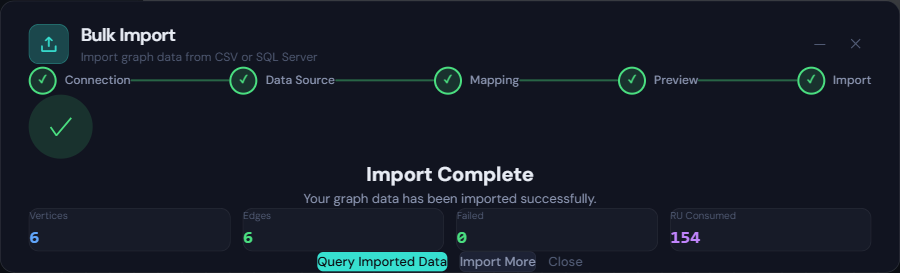
- Import — Watch real-time progress with live RU tracking. Minimize to a floating PIP widget and keep working.
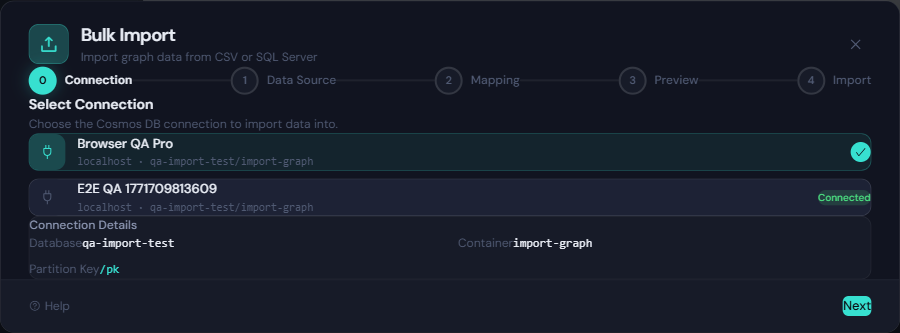
CSV and Delimited File Import
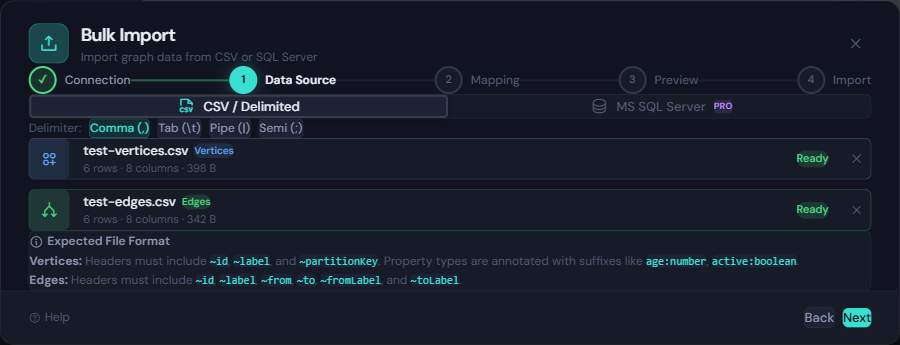
Drop a CSV, TSV, pipe-delimited, or semicolon-delimited file into the wizard and GremlinStudio parses it instantly. Convention-based headers make column mapping automatic:
~id,~label,~partitionKey,name,age:number,email,active:boolean
v1,person,dept-eng,Alice Chen,30,alice@acme.com,true
v2,person,dept-eng,Bob Smith,25,bob@acme.com,true
v3,person,dept-mkt,Carol Wu,33,,false
The ~ prefix columns (~id, ~label, ~partitionKey) map to graph structure automatically. Type annotations like :number and :boolean on property headers give you precise control over how values are stored in Cosmos DB.
Edges work the same way:
~id,~label,~from,~to,~fromLabel,~toLabel,weight:number
e1,knows,v1,v2,person,person,0.8
e2,works_at,v1,v3,person,company,1.0
Upload both files, and the wizard imports vertices first, then edges — automatically enforcing the correct order.
The mapping step lets you wire each CSV column to a graph property. Auto-map handles the common cases, and you can manually override individual columns with a dropdown for full control.
Live SQL Server Import
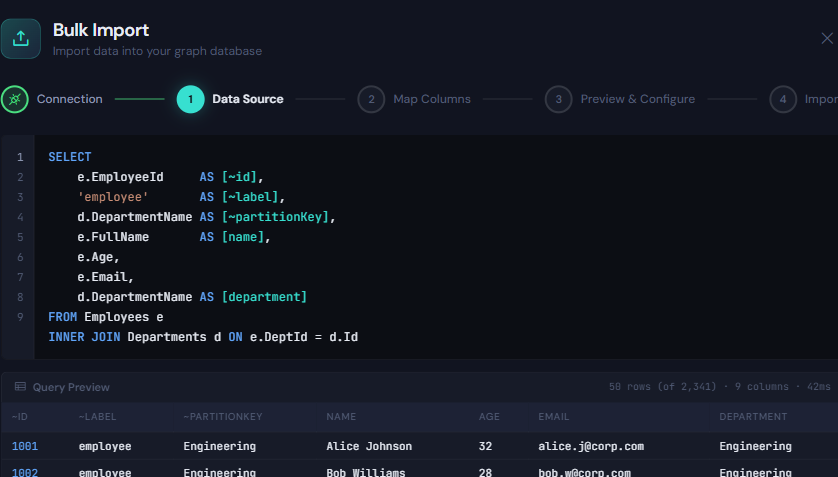
This is where it gets powerful. Instead of exporting data to an intermediate file, you can connect directly to a Microsoft SQL Server instance, write a SQL query, and stream the result set into your graph.
The SQL Server panel provides:
- Connection form with Windows Auth and SQL Login support
- Query editor with syntax highlighting and a “Run Preview” button that shows the first 50 rows
- Import mode selector — choose whether each row becomes a vertex or an edge
- Auto-type inference from SQL column types (no annotation suffixes needed)
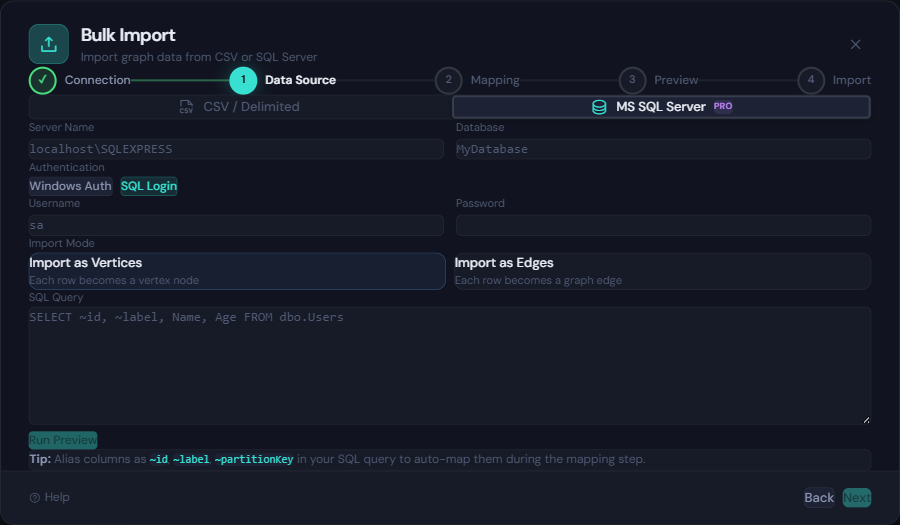
Alias your SQL columns to ~id, ~label, and ~partitionKey for instant auto-mapping:
SELECT
    e.EmployeeId     AS [~id],
    'employee'       AS [~label],
    d.DepartmentName AS [~partitionKey],
    e.FullName       AS [name],
    e.Age,
    e.Email,
    d.DepartmentName AS [department]
FROM Employees e
INNER JOIN Departments d ON e.DeptId = d.Id
The query is executed via SqlDataReader in streaming mode — rows are never buffered in memory. They’re converted to graph elements on the fly and handed to the bulk executor in batches.
Why It’s Fast: Cosmos SDK Bulk Executor
Under the hood, Bulk Import uses the Cosmos DB SDK Bulk Executor — not individual Gremlin queries. The difference is dramatic:
| Approach | Throughput |
|---|---|
Individual g.addV() queries | ~50–200 items/sec |
| Cosmos SDK Bulk Executor | ~5,000–50,000+ items/sec |
The SDK handles parallelism automatically with AllowBulkExecution, auto-retries on 429 (throttled) and 409 (conflict) responses, and optimizes network utilization without any manual batch sizing.
For a typical import of 10,000 vertices + 20,000 edges at 4,000 RU/s provisioning, expect completion in 1–2 minutes instead of the hour it would take with individual Gremlin queries.
Real-Time Progress and RU Tracking
During import, the wizard streams live metrics via SignalR:
- Progress bar with percentage complete
- Vertex and edge counters updating in real time
- RU consumed — so you can monitor cost as it happens
- Elapsed time and estimated remaining time
- Activity log with timestamped events
Need to keep querying while a big import runs? Click Minimize and the wizard collapses to a floating picture-in-picture widget in the bottom-right corner. It shows phase, progress, and stats — click to expand back to the full wizard at any time.
Validation Before Writes
Before a single document is written to Cosmos DB, the wizard runs a full validation pass:
- Required columns — checks for
~id,~label,~partitionKey(vertices) or~from,~to,~fromLabel,~toLabel(edges) - Partition key values — ensures every vertex has a non-empty partition key
- Type parsing — validates that
:numbercolumns contain numbers,:booleancolumns contain booleans, etc. - Referential integrity — ensures edge
~fromand~toIDs exist in the vertex set - Duplicate ID detection — warns about duplicate vertex IDs within the import
Blocking errors prevent the import from starting. Warnings (like empty optional fields) are surfaced but don’t block.
Create vs. Upsert
Before importing, choose your duplicate handling strategy:
- Create (fail on duplicate) — fastest option. Fails if a vertex/edge with the same ID and partition key already exists.
- Upsert (overwrite duplicates) — safe for re-imports. Creates new items or updates existing ones. Costs roughly 1.5x the RU of a create.
If you’re loading data for the first time, use Create. If you’re refreshing or re-importing, use Upsert.
Error Recovery
Import doesn’t stop on individual failures. If a row fails (type mismatch, conflict, oversized document), GremlinStudio logs the error and continues with the remaining items. At the end, you get:
- A completion summary with success/failure counts and total RU consumed
- A downloadable error report (CSV) listing every failed row with the error description
- The option to fix the source data and re-import just the failed rows
Pro Feature
Bulk Import is available on Pro ($9.99/mo) and Team plans. Trial users can preview the wizard but cannot execute imports. View pricing →
Try It Now
If you’re already on a Pro plan, the Bulk Import wizard is available in the activity bar — look for the upload icon. If you’re new to GremlinStudio, download the app and start your 7-day free trial.
For the full feature walkthrough, see the Bulk Import feature page →.